
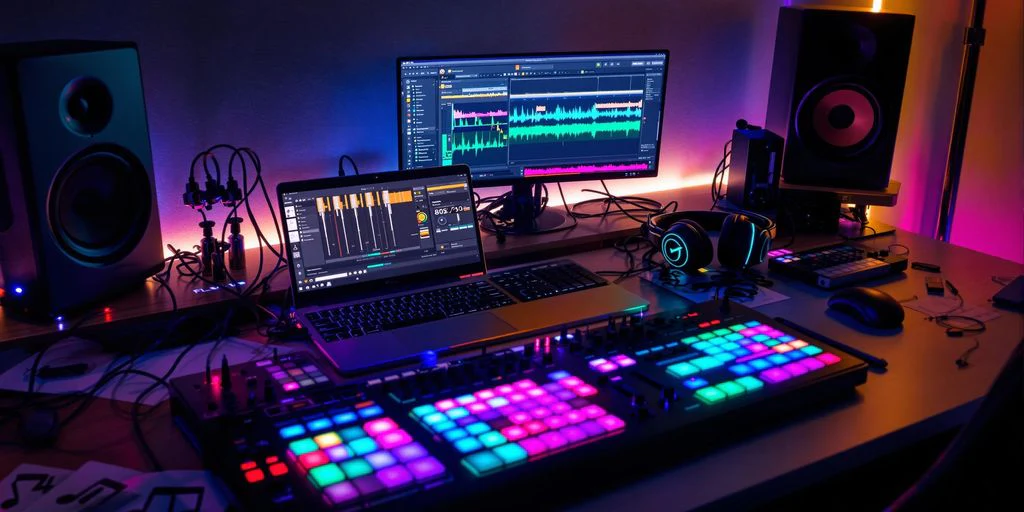
Crash Course on Software Mixing in the Digital Domain.
Hey, what’s up.
This is a closer look at software mixing—specifically how mixing works in the digital domain. In previous discussions, the focus was on mixing in general, mixing consoles, and signal flow. Here, that same idea is carried forward, but translated into the world of computers, interfaces, and software.
While the tools look different, the core principles remain very similar. The digital domain mirrors a lot of what already exists in analog mixing—just with more flexibility, more options, and fewer physical limitations.
What You Need to Record and Mix Digitally
To work in the digital domain, a few essential components are required. Each one plays a specific role in the overall signal flow.
A Computer
First off, you need a computer.
This is the central hub where all recording, editing, playback, and mixing takes place.
An Audio Interface
Next, you’ll need an audio interface.
The audio interface is responsible for converting signals:
- From analog to digital
- From digital back to analog
Because of this, it’s often referred to as an AD/DA converter.
The interface is the bridge between your microphones, speakers, and the computer.
Inputs and Outputs
- Inputs receive signals from:
- Microphones
- Instruments
- Samplers
- Synthesizers
- Outputs send signals to:
- Speakers
- Mixers
- Outboard gear
This allows you to record audio into the computer and play it back into the physical world.
Drivers: The Communication Layer
The interface works together with a piece of software called a driver.
The driver:
- Knows all the inputs and outputs of the interface
- Manages latency
- Allows the computer to communicate with the interface
The driver is installed on the computer that the interface is connected to, ensuring everything works together correctly.
The Digital Audio Workstation (DAW)
What Is a DAW?
To record, edit, and play back music, you need a Digital Audio Workstation, often shortened to DAW (sometimes pronounced “do”).
In the DAW’s settings, you select:
- Which audio driver to use
- Typically, this will be the driver for your audio interface
This allows the DAW to communicate directly with the hardware.
Configuring Inputs and Outputs
Depending on the DAW you’re using, you’ll need to:
- Define which input ports are active
- Define which output ports are active
- Route these ports inside the software
Once set up, you can freely route signals just like you would on hardware.
Simply said, the DAW is your recording device and your mixing board in one.
Digital Tracks and Virtual Mixing
One of the biggest advantages of digital audio is the ability to keep adding tracks.
- You can create:
- New tracks
- New mix channels
- New routing paths
This level of expansion would be impossible on an analog mixing console.
Virtual Tracks and Routing
Inside a DAW, you create digital tracks.
On each track, you can configure:
- Input selection
- Output routing
- Sends
- Inserts
These tracks can be routed to:
- Interface inputs
- Interface outputs
- Virtual buses
Buses in the Digital World
Just like in analog mixing, DAWs use buses.
The Master Bus
- The Left/Right Master Bus is used for the final mix
- All channels are typically routed here
Group and Auxiliary Buses
In addition to the master bus, DAWs also provide:
- Group buses
- Auxiliary buses
This allows for complex routing, similar to what’s possible in the analog world.
The digital domain offers the same routing flexibility—sometimes even more.
Sends and Inserts in Software Mixing
Auxiliary Sends
Most software mixers include auxiliary sends.
These allow you to:
- Send a portion of a channel’s signal
- Route it to an auxiliary bus
This is commonly used for effects like reverb or delay.
Inserts and Plugins
In software, inserts are handled using plugins.
Common plugin types include:
- EQ plugins
- Compressor plugins
- Gate plugins
- Reverb plugins
These plugins are inserted directly onto a channel inside the DAW.
Most DAWs come with:
- A large collection of built-in plugins
You can also expand your setup by purchasing:
- Third-party plugins from external developers
Choosing a DAW
The choice of DAW is largely a personal preference.
There are many different DAWs available, and it’s difficult to say that one is objectively better than another. It really comes down to which one you prefer working with.
Commonly Used DAWs
Some of the most well-known options include:
- Avid Pro Tools
- Steinberg Cubase
- Apple Logic
- Ableton Live
- Propellerhead Reason
- FL Studio
- Adobe Audition
- Reaper
- Cakewalk Sonar
- PreSonus Studio One
- MOTU Digital Performer
- MOTU MachFive
There are also newer and free options such as:
- Audacity
- Ohm Studio
As you can see, there’s a wide range of choices available.
What’s Coming Next
The next step is diving deeper into digital audio itself.
Upcoming topics include:
- Bit depth
- Sample rate
- A comparison of popular DAWs
- Cubase
- Pro Tools
- Logic
- Other well-known platforms
After that, the focus shifts to:
- Mixing theory – part two
- Practical mixing sessions
- Arranging full mix projects
There’s also ongoing content being prepared, including:
- Detailed mix sessions
- Arrangement walkthroughs
Updates and new material are shared through:
- The website
Additionally, the new iBook release on OS X Mavericks is available through the iBook Store on MacBooks.
This was Wick for Wiki Media Tutorials.