
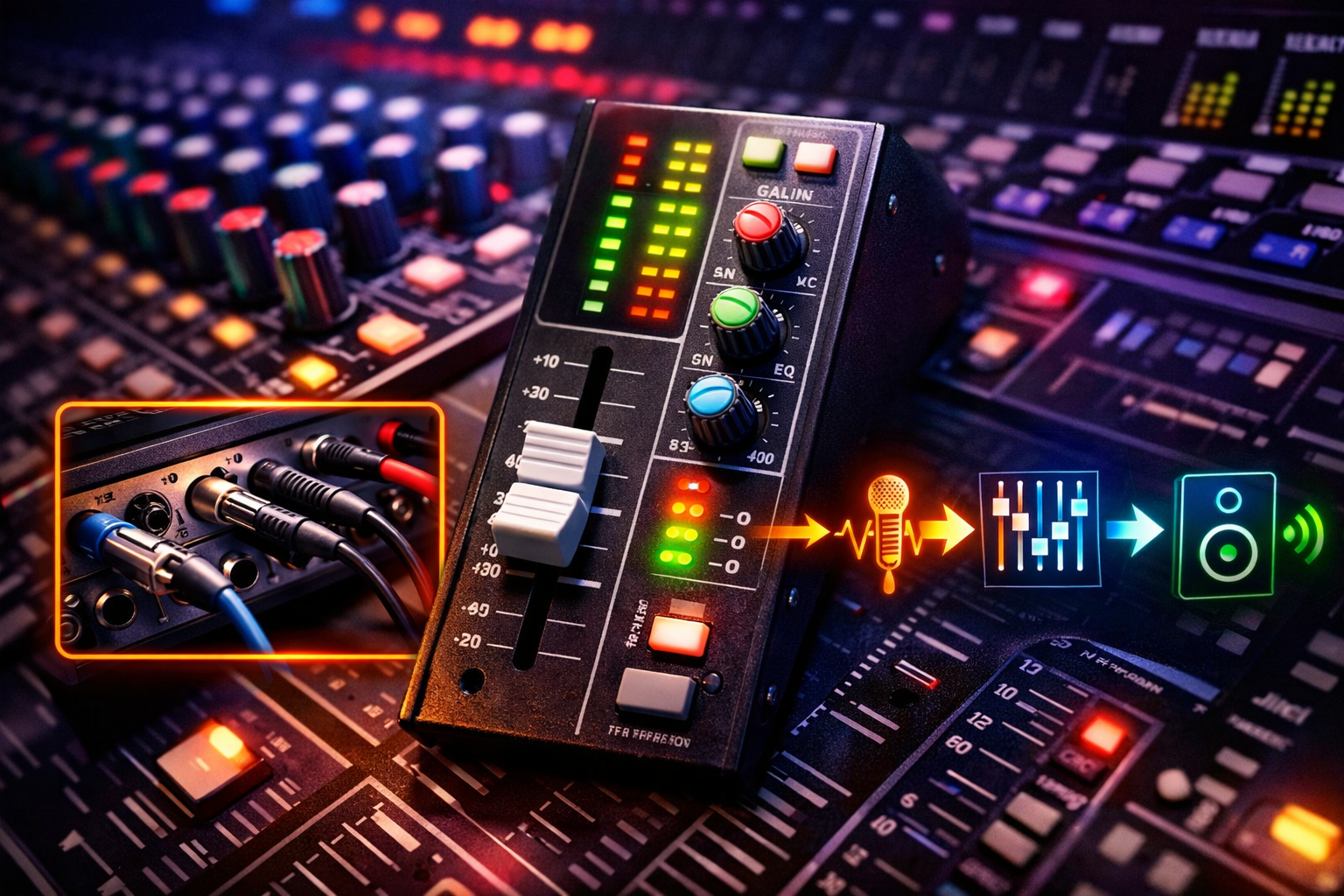
Mixing Console 101: Channel Strips, Signal Flow, and Routing Explained
To really understand the console that we’re going to be working with, there are a couple of foundational things we need to know first.
The first is understanding what type of console we have.
The second is taking a look at the master section and the type of routing available there.
And then, most importantly, we take a deep look at the channel strip.
Once you understand one channel, you basically understand all the channels—and that already gives you insight into the majority of the console.
Keep in mind: there are many different mixing consoles, from many different brands. Some are simplified, some have fewer functions, and some are very complex. What follows is an explanation based on a complex channel strip, but the structure and division of the channel strip is almost universally the same across consoles.
The Universal Layout of a Channel Strip
A channel strip can be visualized from top to bottom, following the signal flow as it moves through the console.
Typically, you will find:
- Input and output section at the top
- EQ section below that
- Dynamics section on larger consoles
- Insert point
- Auxiliary section
- Fader section, which acts as the output stage
Depending on the model, the routing section may be found at the top or the bottom of the channel strip.
Think of the channel strip as a vertical signal path—signals enter at the top and leave at the bottom.
Input Section: Where the Signal Enters the Console
At the very top of the channel strip, we find the input module. This is where the signal actually enters the console and is brought up to a level that we can process.
Most consoles provide:
- Microphone input
- Line input
A microphone signal is very low-level, so it needs to be pre-amplified significantly. The microphone input is usually an XLR connection, although on some cheaper models this may be a ¼-inch jack.
Normally, all physical inputs and outputs are found on the back of the console.
Gain Controls and Input Switching
Using a Solid State Logic (SSL) AWS console as an example, the top of the channel strip contains:
- Separate gain controls for:
- Microphone input
- Line input
Along with several switches that influence the incoming signal:
Phantom Power (48V)
- Labeled as +48V, Phantom, or Phantom Power
- Enables the use of condenser microphones
Instrument Switch
- Changes the input circuitry from:
- Microphone input
- To instrument input
Pad Switch
- Attenuates the signal by –20 dB (sometimes –10 dB)
- Extremely useful when signals are overdriving, even at the lowest gain setting
Phase Reverse Switch
- Inverts the signal by 180 degrees
- Useful for correcting phase issues between microphones
Flip Switch
- Switches between line input and microphone input
- Allows flexible use of the channel fader during mixing
High-Pass Filter and Equalization
Moving down the channel strip, we encounter the high-pass filter, which removes unwanted very low frequencies.
Below that sits the EQ section.
On this SSL console, we find:
- A four-band equalizer
- Two fully parametric EQ bands
- Two different EQ circuitry types to choose from
This section allows detailed tonal shaping of the signal before it moves further down the chain.
The Insert Point: External Processing
In the center of the EQ section, we find the insert point.
An insert allows the signal to:
- Leave the console
- Be processed externally
- Return to the console
This makes it possible to insert processors such as:
- Compressors
- Equalizers
- Any other external processor
Physically, the insert usually consists of:
- Insert send
- Insert return
These ports are typically found on the back of the console.
Some consoles use:
- Two separate ports
- A single port requiring a Y-cable (send and return)
You are not limited to one processor.
You can chain multiple processors by routing the output of one into the input of another before returning the signal to the console.
Auxiliary Sends: Creating Headphone Mixes and Effects
Below the EQ and insert section, we find the auxiliary section.
On this console, there is a dedicated cue send for headphone mixes, meaning we don’t have to use a standard effects send for monitoring.
Normally, these are referred to as auxiliary sends.
Pre-Fader vs Post-Fader
An auxiliary send can be:
- Pre-fader
- Post-fader
This is usually controlled by a pre switch.
- If the pre switch is engaged, the send is pre-fader
- If not, it’s post-fader
Using Aux Sends for Effects
Aux sends are commonly used to send part of a signal to an effects processor, such as a reverb unit.
Instead of inserting reverb on a single channel:
- You send multiple channels to Aux 1
- Aux 1 output feeds the reverb
- The reverb output returns to:
- A spare channel
- Or a group return
This allows every channel to share the same reverb.
On this console:
- There are four auxiliary buses
- Only two can be selected per channel
- You can choose:
- Aux 1 or 3
- Aux 2 or 4
The Fader Section: Level, Pan, and Control
At the bottom of the channel strip, we arrive at the fader section, which contains much more than just a fader.
Depending on the console:
- There may be two sets of faders:
- Input fader
- Tape return fader
For space and budget reasons:
- The upper fader is often replaced by a rotary knob
The flip switch allows these faders to swap roles, which is especially useful during mixdown, giving full-sized faders control over the tape return.
Panning and the Stereo Bus
In the fader section, we also find the pan knob.
The master bus can be visualized as two horizontal lines:
- Left bus → left speaker
- Right bus → right speaker
When a signal is panned center:
- It’s sent equally to both sides
When panned left:
- Level decreases on the right bus
- The sound appears to come more from the left speaker
Mute and Solo Functions
Mute
- Completely removes the channel from the mix bus
- The signal is no longer heard in the mix
Solo Types
Depending on the console, several solo modes may exist:
Solo In Place (SIP)
- Mutes all other channels
- Cuts them from the stereo bus
- Destructive to the mix
Advantage:
- Accurate representation of the sound in context
Disadvantage:
- During live recording or master recording, it removes all other instruments
Pre-Fader Listening (PFL)
- Uses a separate mono solo bus
- Taken before the fader
- Fader position does not affect solo level
After-Fader Listening (AFL)
- Also non-destructive
- Taken after the fader
- Allows judging the level as placed in the mix
Routing Section: Sending the Signal Forward
Finally, we reach the routing section.
Here, we select which bus the channel output is sent to after the fader and panning.
Common options include:
- Main mix bus
- Group buses
On this SSL console, group routing is located at the top of the channel strip. On many other consoles, it’s found next to the fader.
Routing determines whether a signal goes directly to the mix, to a subgroup, or elsewhere in the console.
Once you know one channel, you know them all.
Understanding a single channel strip gives you insight into roughly 80% of the entire console.
The remaining piece lies in the master section and group routing, which builds on everything covered here.